Application miart milano 2027
User Guide
Below is a step-by-step guide to help you complete the application for miart milano 2027.
Follow the instructions carefully to successfully complete your registration:
If you prefer to complete and submit your application at a later time, click Save and continue later. The system will save the information you have entered. To resume an incomplete application, return to application.miart.it. By entering your email address again in Step 1, you will be able to retrieve your previously saved data.
Please note: after submission, the application can no longer be edited.
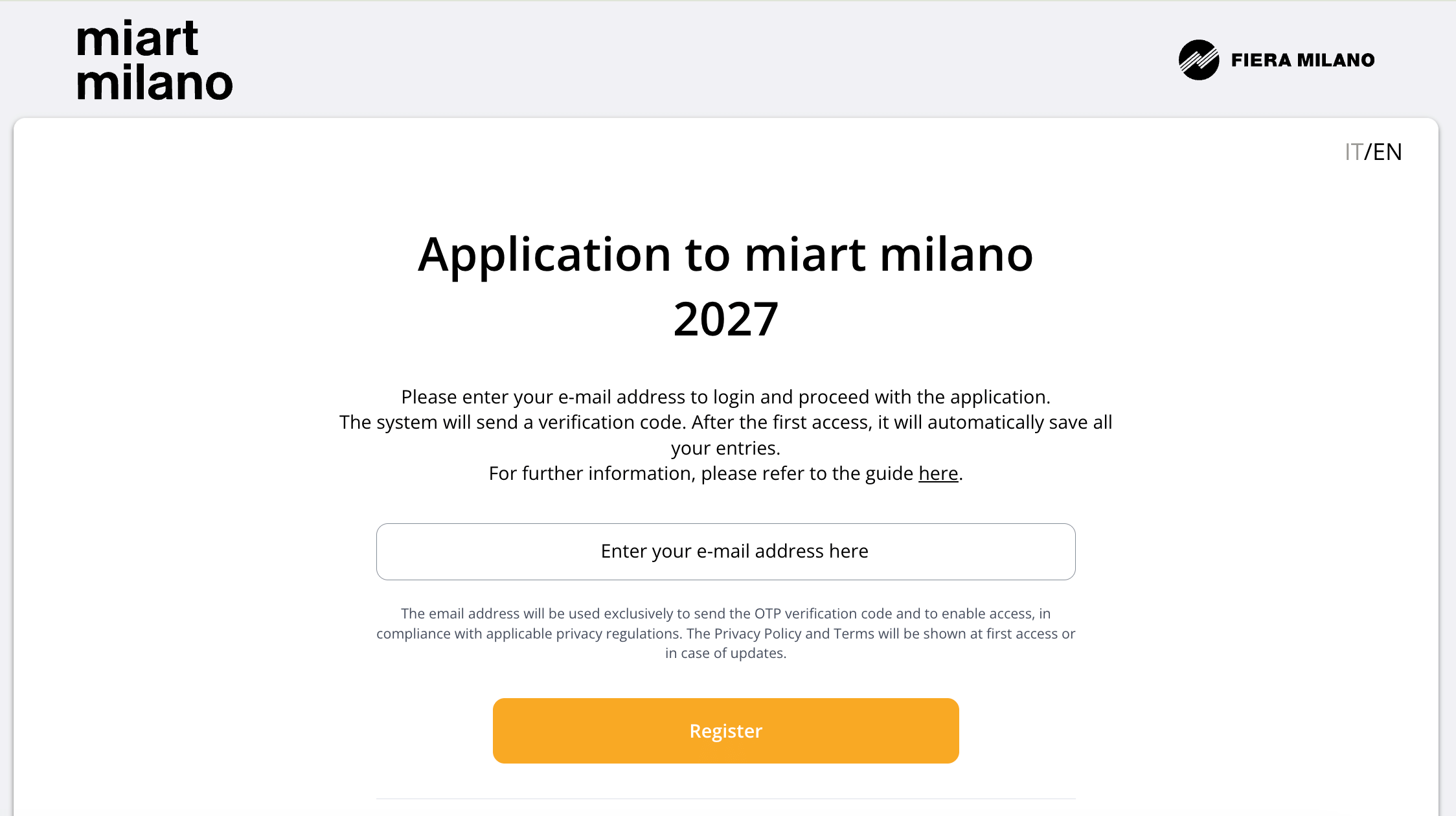
1.Enter your email address
As the first step, the form will ask you to:
• Enter an active email address that you can easily access;
• Click the Register button.
2. Verification code
The system will send a verification code to the email address you provided in the previous step. You need to:
• Copy and paste the code into the designated field;
• Click Verify code.
If you do not receive the code, check your email’s Spam folder or click Resend code to receive a new one.
3. Select your Section
Should you require more information regarding the next edition, please click on Discover the overview of the miart milano 2027 here.
Choose the section you wish to apply for:
• Main Section Contemporary and Modern
• Close Up. Solo Shows and Conversations
• New voices
You can select your stand size by moving the slider along the scale. Available stand sizes vary depending on the section you have chosen.
You will see an updated summary of the participation fees.
Ultimately, please read the General Regulations and the Terms and Conditions carefully, and confirm your acceptance by checking the I Agree box.
To continue with the application, click Save and proceed.

4. Company details
In this step, you'll be asked to provide the following details:
• Company details: enter the name of your organization.
• Location: list the cities where your organization is located (enter city names only, separated by a dash "-")
• Location Addresses: enter the address of your organization (this field is not available for Sponsors). If you have more than one, click Add address. If needed, you can remove an address by clicking the X next to it.
• Profile image: upload a representative image of your organization (this field is not available for Magazines and Sponsors). The uploaded image will be published on miart milano’s website under the “Galleries 2027” section. We recommend uploading an image with the following specifications: horizontal format, PNG, 2048 x 1536 pixels. Uploading images with different formats may result in cropping or distortion.
• Contacts: enter your organization's contact details: phone number, email address, and website link.
• Exhibition contact: provide the contact details for your reference person. All communications regarding your participation will be sent to this contact.
• Billing information: provide your organization’s billing details. If you choose a billing nationality other than Italian, the system will ask for your consent to send invoices by email. Make sure to check the required Accept box to receive invoices electronically.
5. Additional details
Here, you’ll be asked to provide additional information about your gallery and its activities:
• Add gallery information (Year of foundation, Gallery Owner, Gallery Director, and Owner's email address)
• Indicate the fairs you have participated in, selecting from the available list
• List the represented artists by entering their full name. You can add up to 100 artists by clicking Add artist. If needed, you can remove an artist by clicking the X next to their name
6. Project presentation
Here, you can present your exhibition project for miart milano 2027. You’ll be asked to:
• Project details: enter a description of the exhibition project (max. 400 words) in the Project details field;
• Upload an optional PDF file by clicking the designated button. If needed, you can delete it by clicking Change file
• Add artworks: fill in the required fields and upload an image for each work (by dragging it or clicking the upload box). The system will display a preview. You can hover over the image to view the entire image. If needed, you can remove the image by clicking the X on the top-right of the image.
You can upload up to 10 artworks by clicking the Add artwork button at the bottom. To delete an artwork, click the X next to the artwork details.
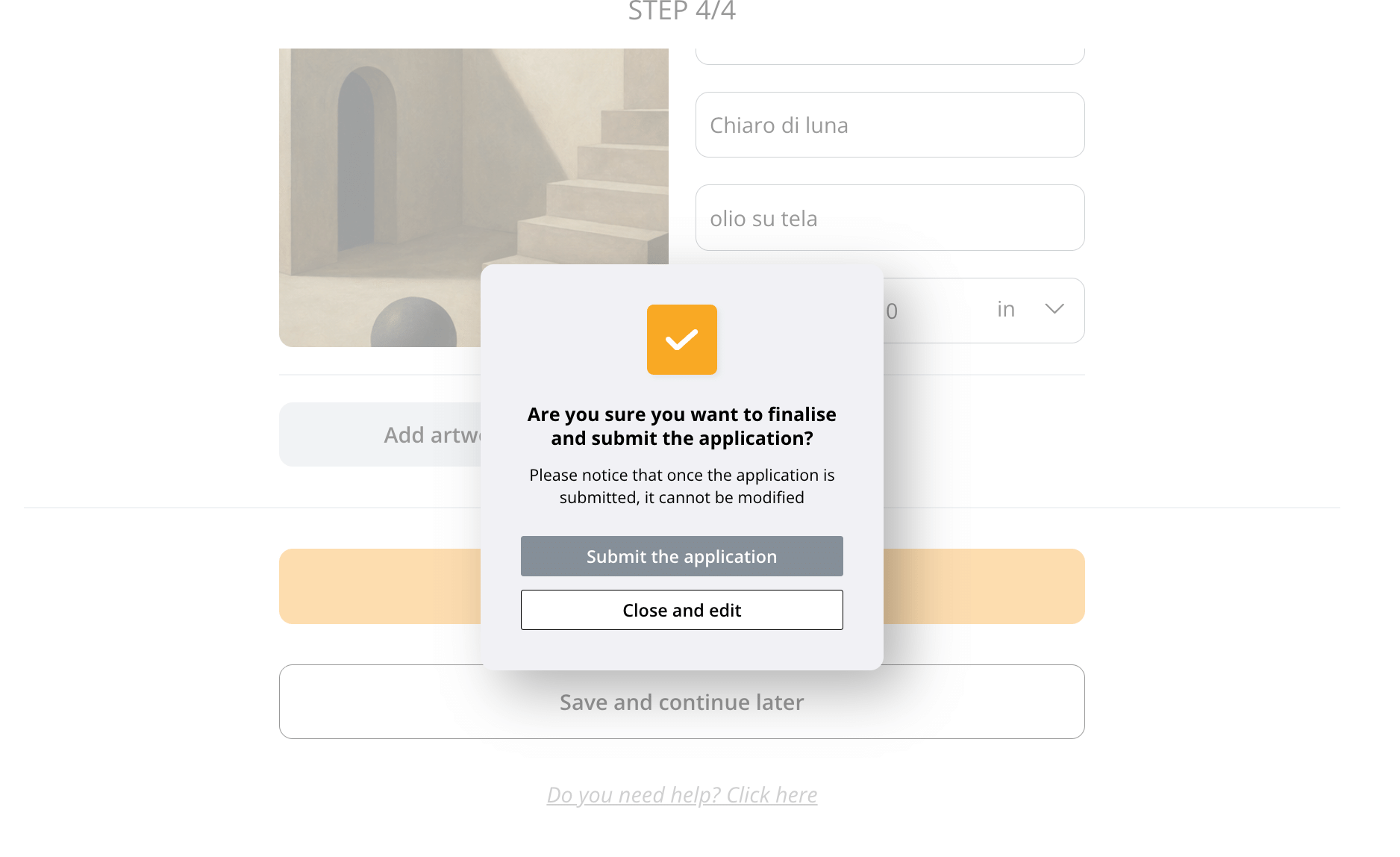
Once you click Save and submit application, a confirmation window will appear.
Please note: after submission, the application can no longer be edited.
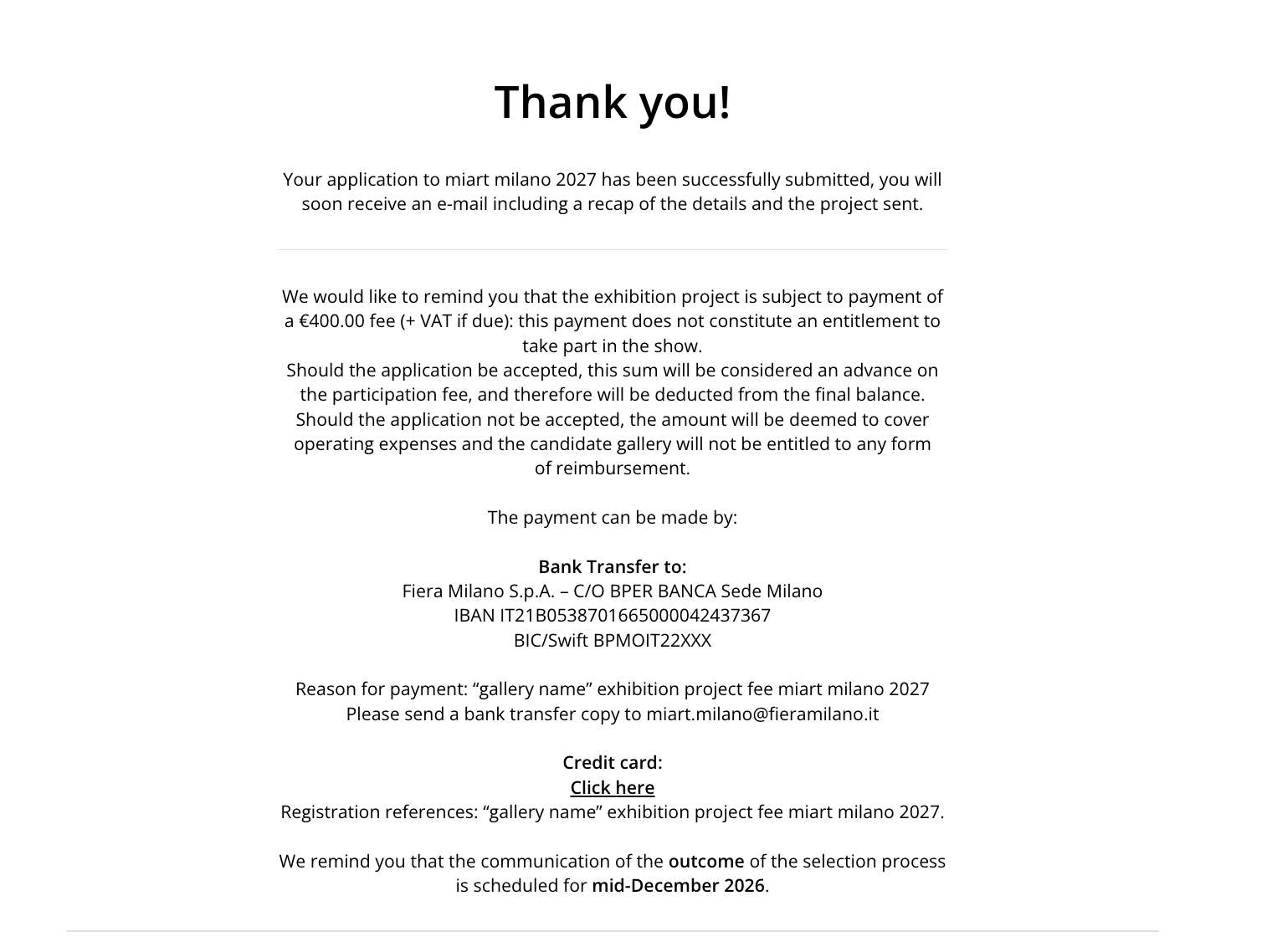
After submission, the system will display a confirmation message and you will receive a summary email with all the information you submitted.
You can then proceed with payment of the application fee either by bank transfer or by credit card through the dedicated payment link.
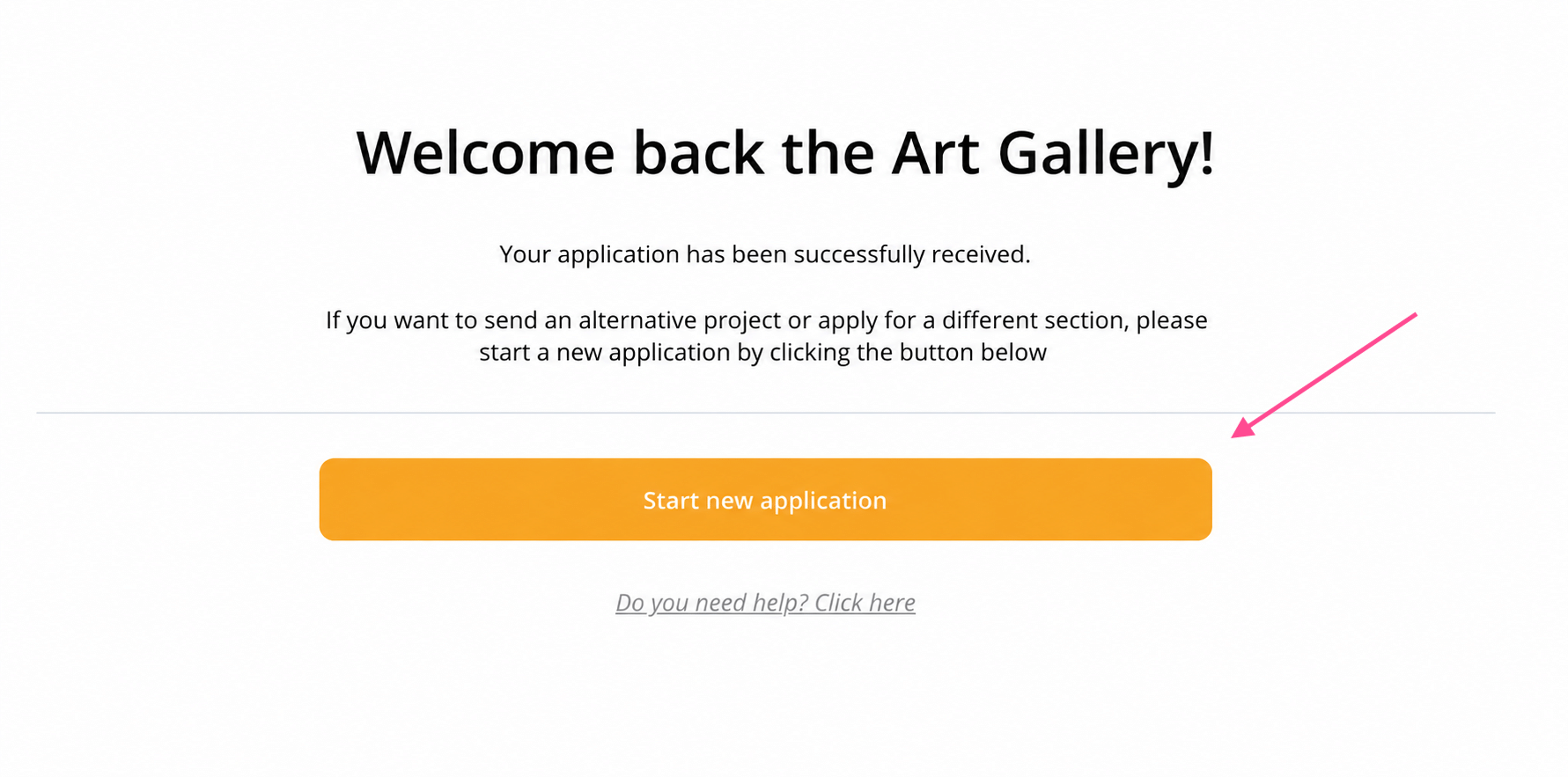
Start a new application
Once your application has been submitted, you can start a new one by going to application.miart.it and clicking the Start new application button.
The information entered in Steps 2/4 (Company details) and 3/4 (Additional details) will be pre-filled but can be modified at any time.
Help Desk
If you experience any issues or technical problems, you can contact us by clicking the Do you need help? Click here link at the bottom of each page of the form.
The link will open a form to fill out, which will be sent directly to our support team.
Should you require any additional information, do not hesitate to contact us.
Thank you,
miart milano Team & Artshell Support Team